

QuickLaundry Get Support 24/7
Subscriptions
The Subscription section helps you manage user and merchant subscription plans with precision and ease.
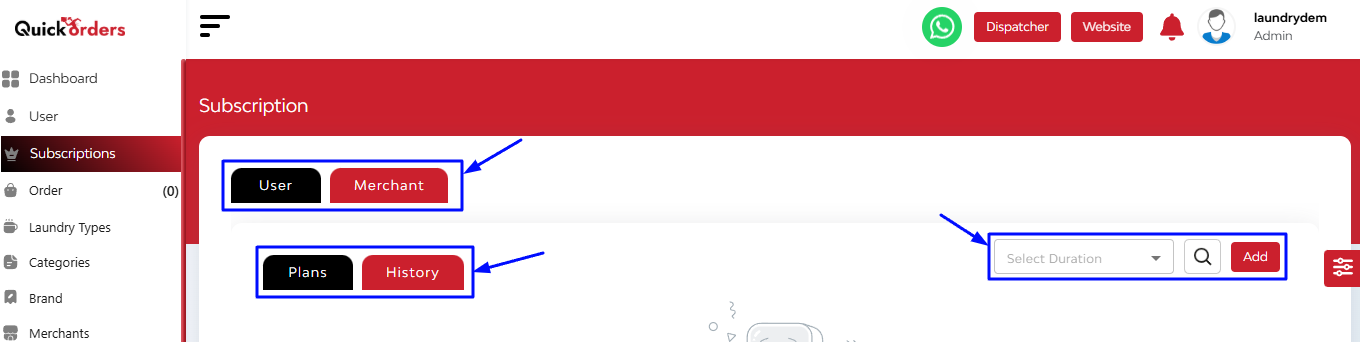
At the top, you will find Main Tabs :
- User
- Merchant
Each tab allows you to manage and view subscriptions independently for end-users and registered merchants.
On the right side of both tabs, you’ll find three essential action tools:
- Select Duration Dropdown – Filter by Monthly, Quarterly, or Yearly subscriptions.
- Search Bar – Quickly search any subscription plan by keyword.
- Add Button – Opens a detailed form popup to create a new subscription plan.
+ Add Subscription Plan:
When clicking the Add button under the User tab, a form popup appears allowing you to input detailed subscription settings. This includes:

- Upload Image (under 2MB)
- Name & Price
- Duration (Monthly, etc.)
- Recommended (yes/no)
- Module Description
Hit the submit button
When you click the Add button under the Merchant tab, a form pop-up appears, allowing you to input detailed subscription settings. This includes:

- Upload Image (under 2MB)
- Name & Price
- Duration (Monthly, etc.)
- Recommended (yes/no) – Highlights the plan as “Recommended” or “Top Pick” for merchants.
- Subscription Implication Type (override existing, add up to existing, queue new)
- Subscription Tier (free/paid)
- Visible (yes/no) – Decides if the plan is publicly shown to merchants in their dashboard subscription listing.
If set to ‘Yes’: The subscription plan will be visible to merchants under the “Subscription” tab in their dashboard.
If set to ‘No’: The plan is hidden from the merchant panel.
- Select the store and enter the description
Advanced Settings:
- Total Orders
- Order Alert Limit
- Per Order Cost & Commission
- Alert Limit Messages
- Once completed, hit Submit to save the new plan.
Inside User and Merchant Sections:
- Plans: This is where all the current subscription plans are listed. The table columns include:
-
- Image
- Name
- Created Date
- Period (e.g., INR 100 / Monthly)
- Active Users / Inactive Users
- Status (Active/Inactive)
- Action (View/Edit/Delete)
2. History: This tab shows past subscriptions with a detailed record of:

- User Details
- Start Date / End Date
- Payment Method
- Plan Name
- Period
- Amount
- Status
At the top right corner, you’ll also find the Total Amount Collected, a convenient way to monitor revenue from subscriptions.